
New File Browser
1. Overview
The File Browser is the primary workspace for viewing, organizing, searching, filtering, and managing files and folders in a project. Users can use it to upload data, browse folder contents, inspect file details, edit metadata, manage tags, create folders, and run supported downstream actions from a single interface.
The File Browser is designed to reduce manual refreshes, make selected actions easier to discover, and provide clearer feedback while users work with files at scale. Where possible, interface labels and feature names are called out explicitly in this document, so users can more easily learn about the product and describe issues to support teams.
1.1. Access the File Browser
Open a project and select the Files tab to access the new file browser. The File Browser opens within the project context and displays the files and folders available in that project.
Note:
You may see two “Files” tabs in the project sidebar:
-
Files (Legacy): The original file browser, still available for users who are familiar with the previous layout.
-
Files (New): The updated file browser that includes the latest improvements and enhanced navigation.
The legacy Files tab will be deprecated in the future, and all users will transition to the new File Browser. Until then, both tabs remain visible to support a smooth migration.
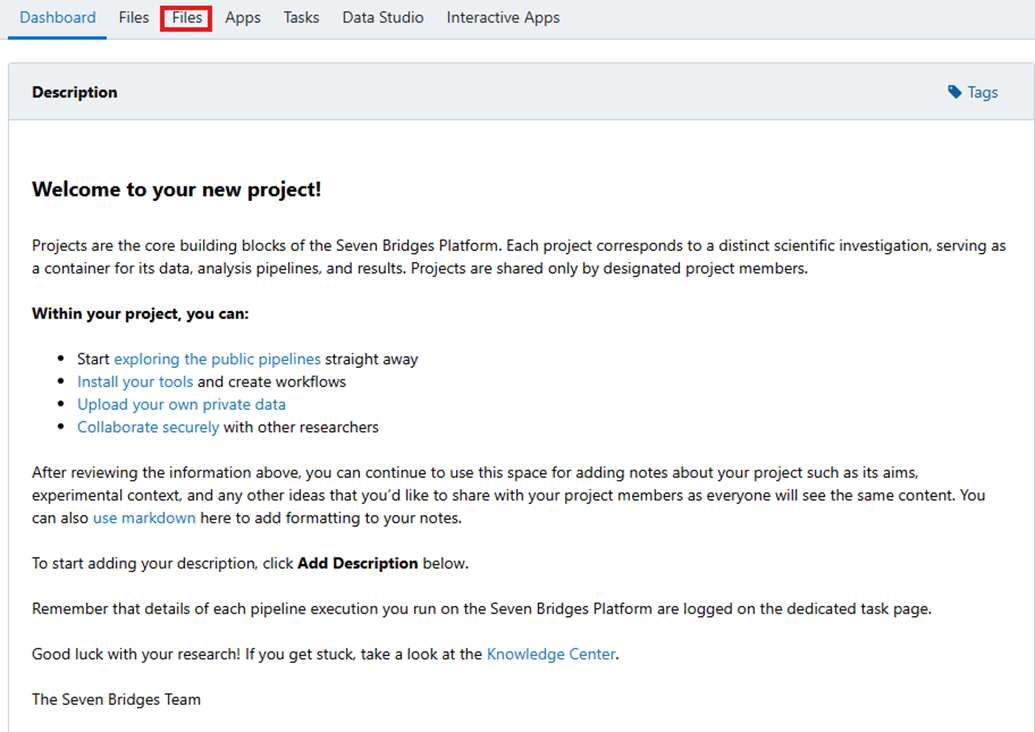
Accessing File browser from the platform page
1.2. File Browser interface
This section provides an overview of the File Browser interface, with annotated callouts identifying each key component. These interface names will be used consistently throughout the documentation to help users quickly understand what each part of the File Browser refers to.
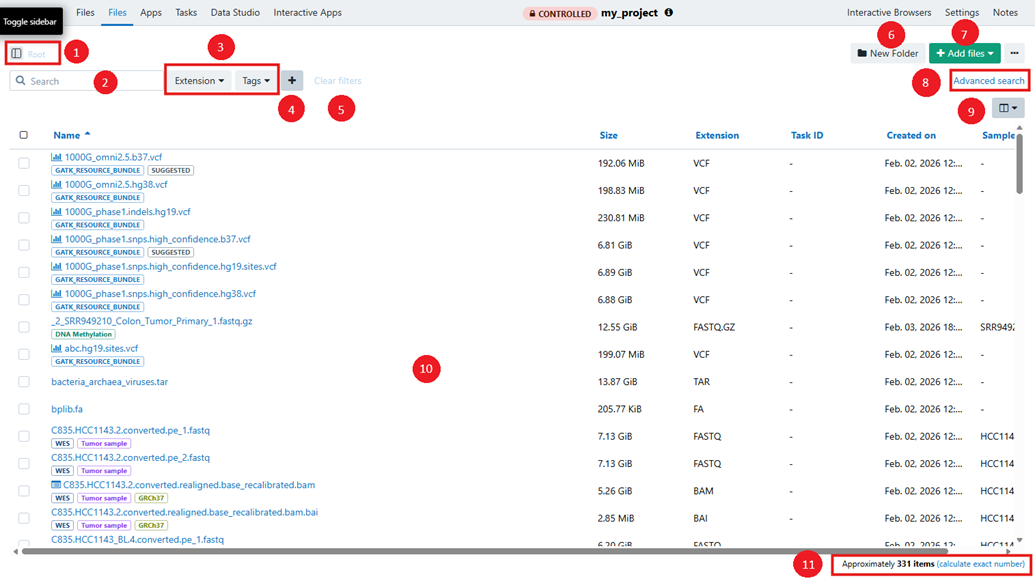
Full browser view with left navigation, file list, toolbar, filters, and right-side details panel visible
Layout and interface callouts:
- Folder tree or directory panel
The left-hand navigation area used to browse through folders and subfolders within the project. - Search
The search bar used to find files or folders by entering keywords. - Filter panel
The area that allows you to refine visible results based on file attributes such as extension, tags, or other available criteria. - Adding a filter
Click to apply additional filters, for example add a File status filter. - Clear filters
Click to remove all applied filters and reset the view. - New folder
Click to create a new folder within the Project - Add Files
Click to upload files into the project. You can add public files, local files from your computer, or import files using a manifest. - Table view
Manage which columns appear in the file browser. View and sort files by any available columns in ascending or descending order. - Table
Displays the files and folders currently in your project. Select an item to access additional actions like copy, rename, edit metadata or download. - File count indicator
Shows the number of visible files and folders. In some cases, you can calculate an exact count for greater precision.
1.3. Browse files and folders
Users can browse files and folders by opening the Files tab, selecting folders in the directory panel, or clicking into folders in the file list. The breadcrumb path shows the current location and helps users move back to earlier levels in the folder structure.
When a new folder is created, it appears immediately in the file list. Users do not need to refresh the page in order to see or select the newly created folder.
The File Browser also allows you to browse through files and folders by using the infinite scroll method. Up to 100 items are listed initially and then once you reach the end of the page another 100 files or folders are shown.
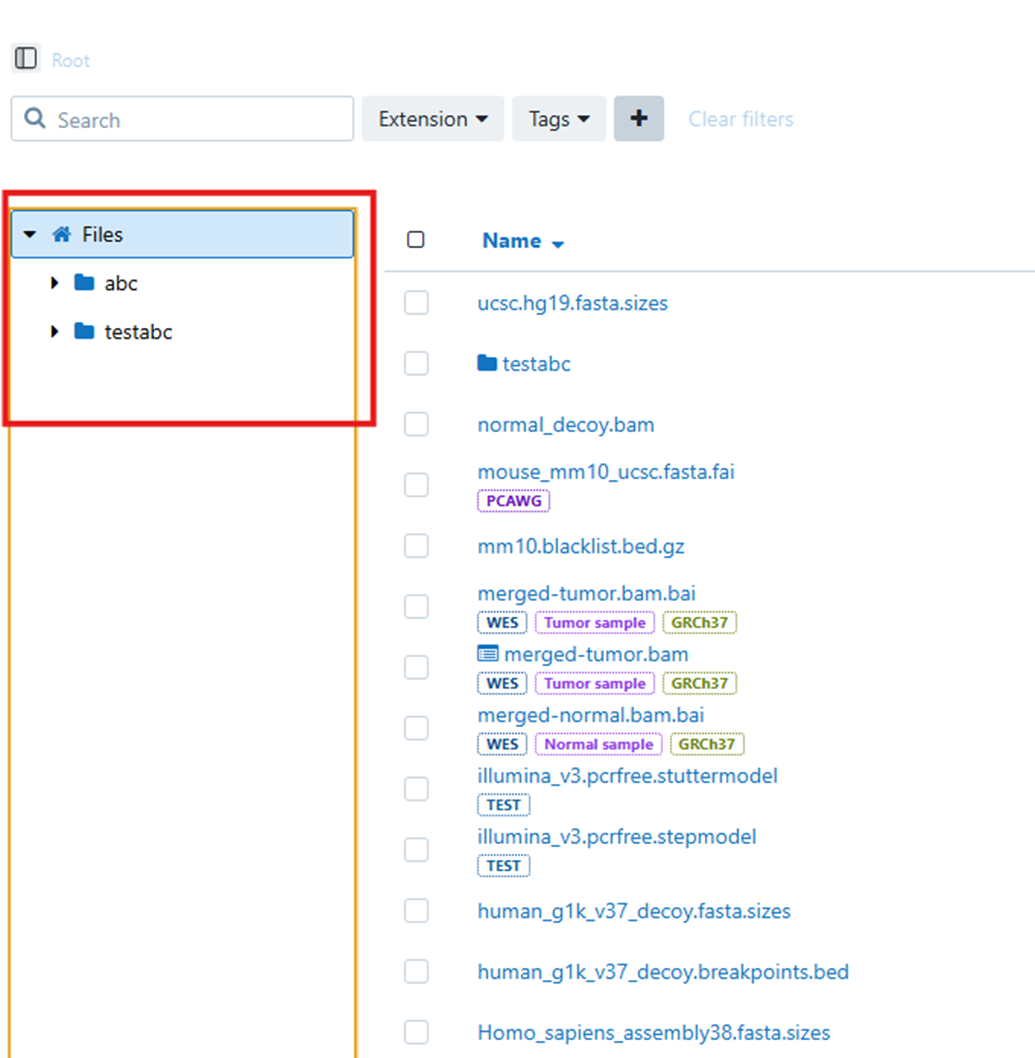
Folder selected in the left panel
2. Search files
The New File Browser supports multiple search modes so that users can either perform a straightforward search or refine the way results are queried.
2.1 Standard Search
Standard Search is intended for everyday file browsing. Users enter a term and review the matching results in the file list.
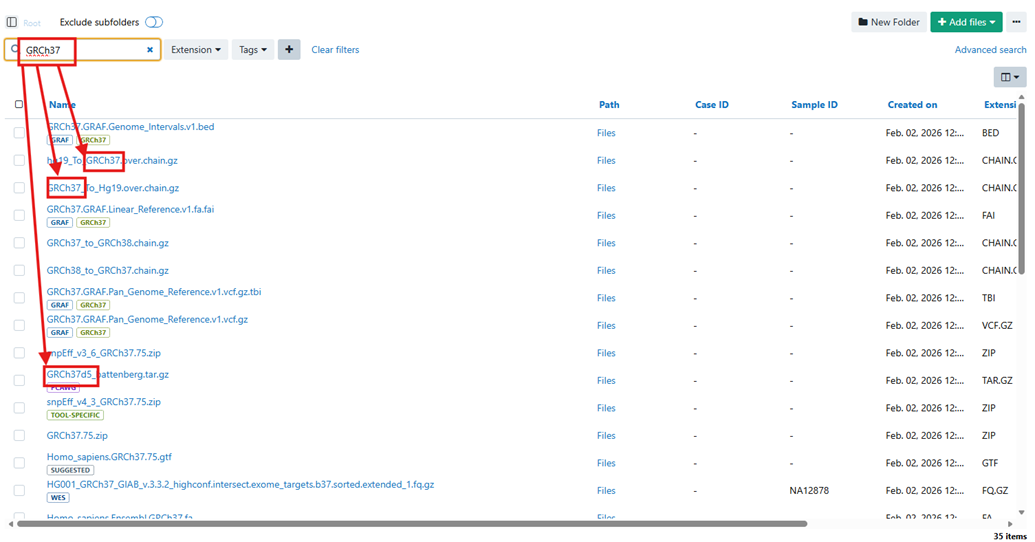
Standard search on “GRCh37”
3. Filter files
Filters help users narrow down the file list so they can focus on a specific set of files. Common examples include filtering by file extension or by tag.
Filter application has been streamlined. For example, after selecting file extensions, users no longer need to click an additional Apply button. The filter is applied automatically when the relevant checkbox is selected.
Tag filtering behavior has also been updated. When multiple tags are selected, the File Browser now displays files that match any of the selected tags. This means the filter uses OR behavior rather than requiring a file to contain all selected tags.
This change is especially useful when users are exploring broad sets of related files and want a more inclusive result set.
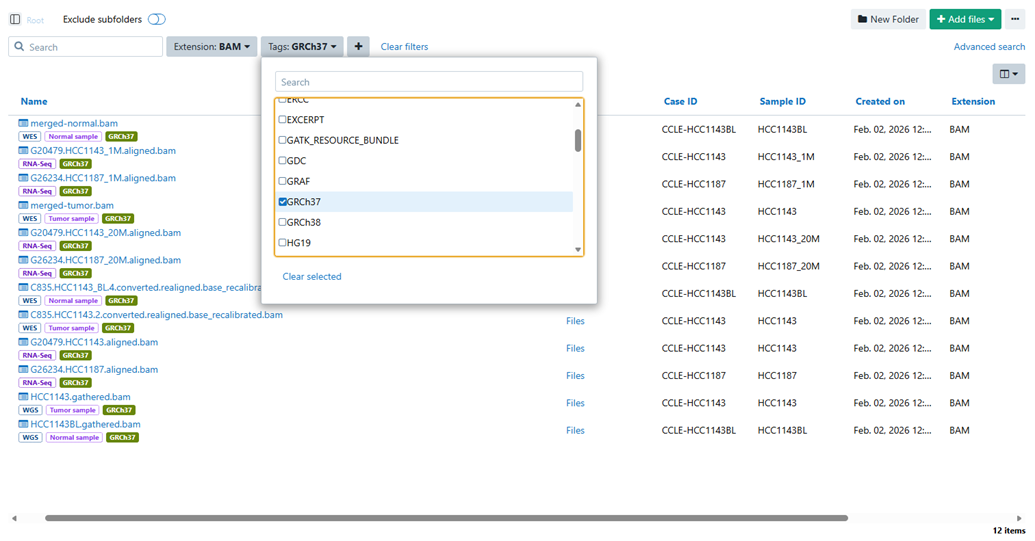
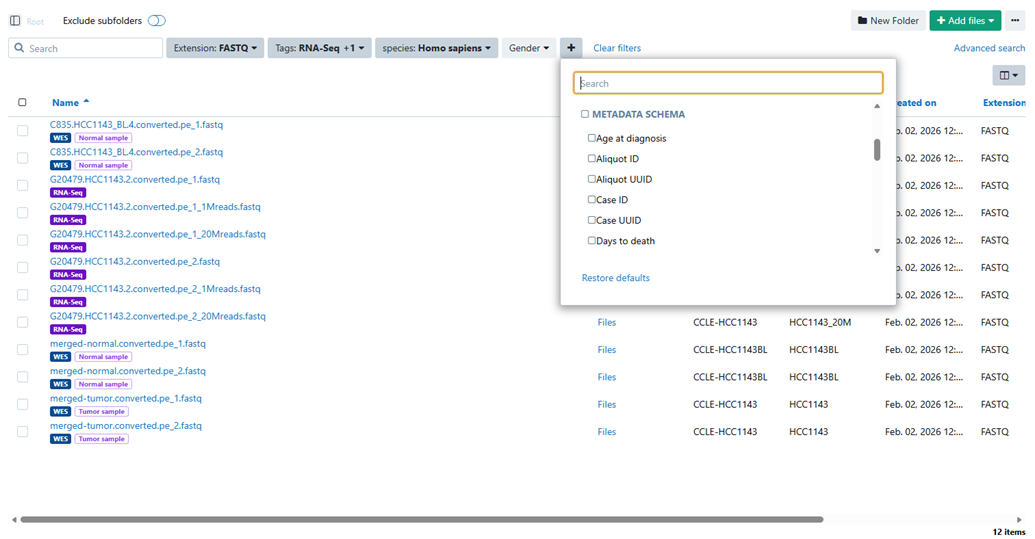
Filters panel expanded with multiple values selected.
4. Understand file counts
The File Browser displays counts to help users understand how many files or folders are visible in the current view. These counts update automatically after supported file operations, so users do not need to manually reload the page to see the latest numbers.
4.1 Automatic count refresh
File and folder counts refresh automatically after the following actions:
• Copy
• Delete
• Upload
• Tag changes
• Metadata updates
• New folder creation
As a result, users can trust that the visible counts reflect the current state of the File Browser after these operations complete successfully.
4.2 Calculate exact number
In some views, the File Browser may initially show a count that is optimized for responsiveness rather than a fully calculated exact total. When the interface offers a Calculate exact number option, users can use it to request the precise count for the current result set.
This is particularly helpful when users are working with large result sets, filtered views, or search results and need a definitive total before taking a downstream action, validating a selection, or communicating counts to collaborators.
Guidance for users:
• Use the displayed count as a quick indicator while browsing.
• Use Calculate exact number when an exact total is required for reporting, validation, or decision-making.
• After file operations complete, the count updates automatically, so a manual page refresh is not required.


The count area with the exact-number option clearly visible
5. File actions
Users can select one or more files from the file list in order to perform bulk actions. When at least one file is selected, a counter pill becomes visible and displays the total number of selected files.
This gives users immediate feedback about the scope of their selection and reduces uncertainty during bulk actions such as metadata updates, deletion, copying, or archiving.


Multiple files selected with the selection counter visible.
5.1. Available actions
The actions available in the Premium File Browser depend on what is selected. Some actions are available when nothing is selected, while others become available only after a file or folder has been selected.
Common actions may include:
• Add files
• New folder
• Copy
• Delete
• Rename
• Archive
• Edit metadata
• Open Interactive Analysis for supported file types
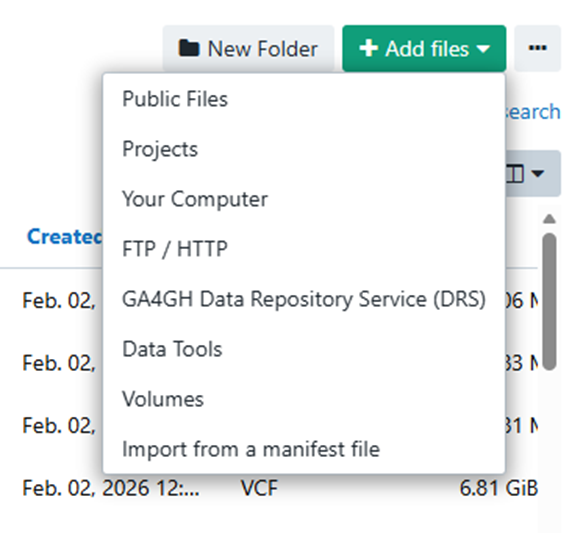
Add files options
The right-side details panel is especially important because it surfaces context-specific actions for the currently selected item.
5.2. Edit metadata
Metadata editing behavior is now context-aware so that the interface better matches the user's selection.
5.2.1 Single file selected
When a single file is selected, the user sees one Edit Metadata button. This makes the action straightforward when the intent is to review or update metadata for a single file.
5.2.2 Multiple files selected
When multiple files are selected, Edit Metadata becomes a dropdown with two options:
• Update
• Clear
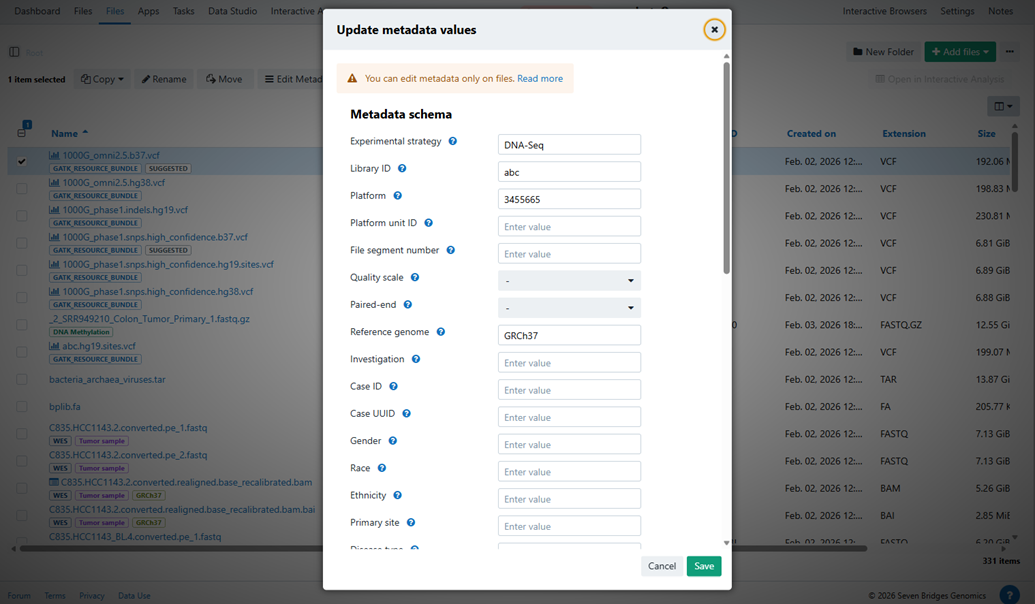
Edit metadata when single file is selected
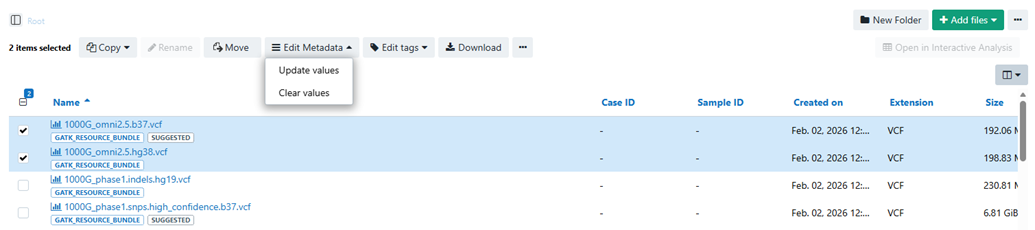
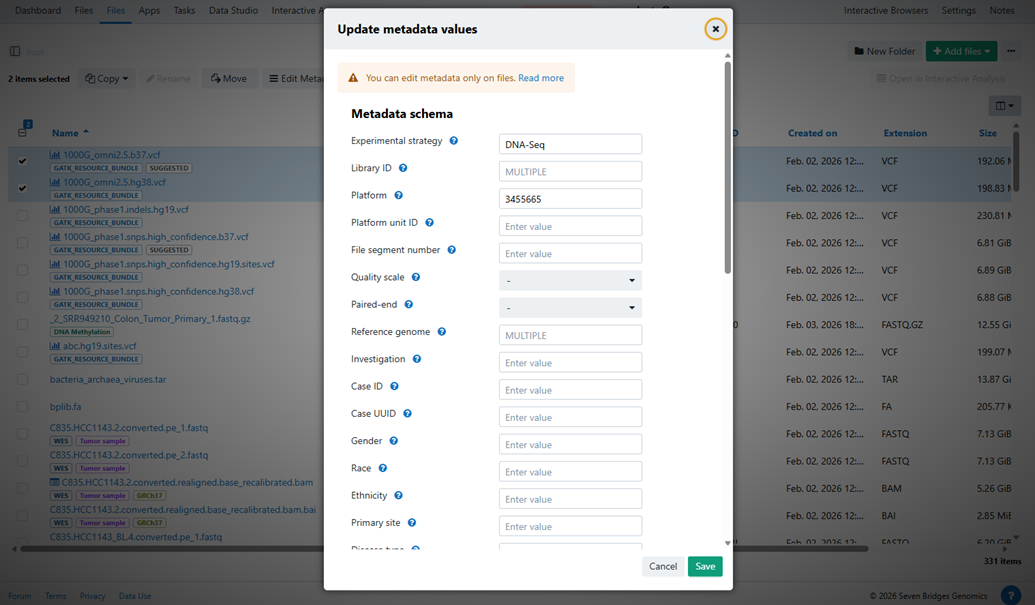
Edit metadata when multiple files are selected
This makes it clearer that bulk metadata editing can either add or revise values or clear existing ones.
5.2.3 Metadata prepopulation
When the Edit Metadata form is opened for a file that already contains metadata, the existing values are automatically prefilled. This reduces repetitive manual entry, speeds up editing, and lowers the risk of accidental overwrites.
5.2.4 Mixed metadata across multiple files
If multiple selected files contain different values for the same metadata field, the File Browser displays MULTIPLE in that field.
This clearly signals that the selected files do not all share the same value and helps users make informed decisions before applying a bulk update.
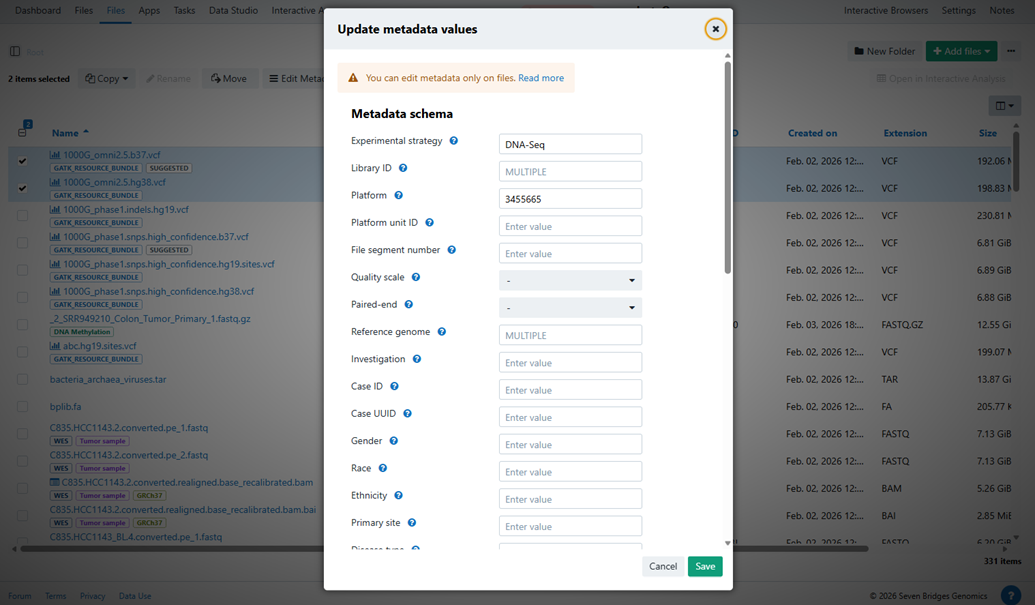
Metadata form showing existing values and a field labelled MULTIPLE
5.3. Open Interactive Analysis
Eligible files can display an Open Interactive Analysis action in the right-side panel. This action is intended for supported file types, such as BAM files with the required related file or index available.
When the action is available and the user selects it, the File Browser redirects the user to the Interactive Analysis workspace.
If the action is not shown, users should verify that the selected file type and required companion files meet the expected criteria.
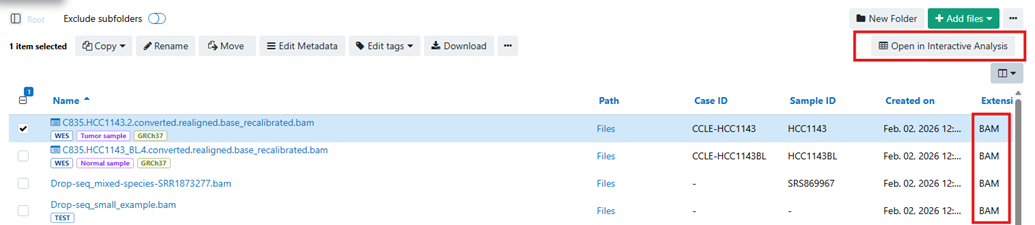
Selected BAM file has an interactive analysis action visible in the right-side panel.
5.4. Auto-refresh after file operations
The New File Browser now refreshes automatically after key file operations. Users no longer need to manually reload the page to see updated results.
Operations covered by auto-refresh include:
• Copy
• Delete
• Upload
• Tag changes
• Metadata updates
• New folder creation
This improvement helps ensure that the file list, folder visibility, and counts stay aligned with the most recent user action.
5.5. Archive files
Archive functionality is available for selected files. Users can use archive actions where supported to remove files from active view while preserving them for later restoration according to the platform's archive model and permissions.
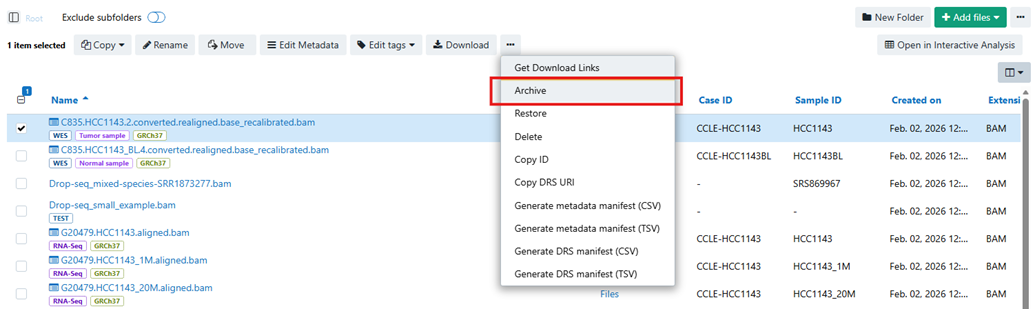
Archiving functionality
6. Additional behavior improvements
The following usability improvements and bug fixes are reflected in the current Premium File Browser experience:
• The PREMIUM label has been removed from the tab to free up screen space.
• The rename popup now closes correctly after a file is renamed.
• Files selected during an earlier import session no longer remain selected when the import modal is opened again.
• Misalignment issues in the New Folder modal have been fixed.
Updated 7 months ago